
Android, Windows, and parent tools built for hands-on family control.
Blanket Fortress is not one dashboard with one narrow idea of parental controls. The Android interfaces, the Windows web interface, and the parent remote app are each built to solve a different part of day-to-day family device management.
Check out our screenshots below to get an idea of how the Blanket Fortress suite can solve your pain points around responsible screen time access.
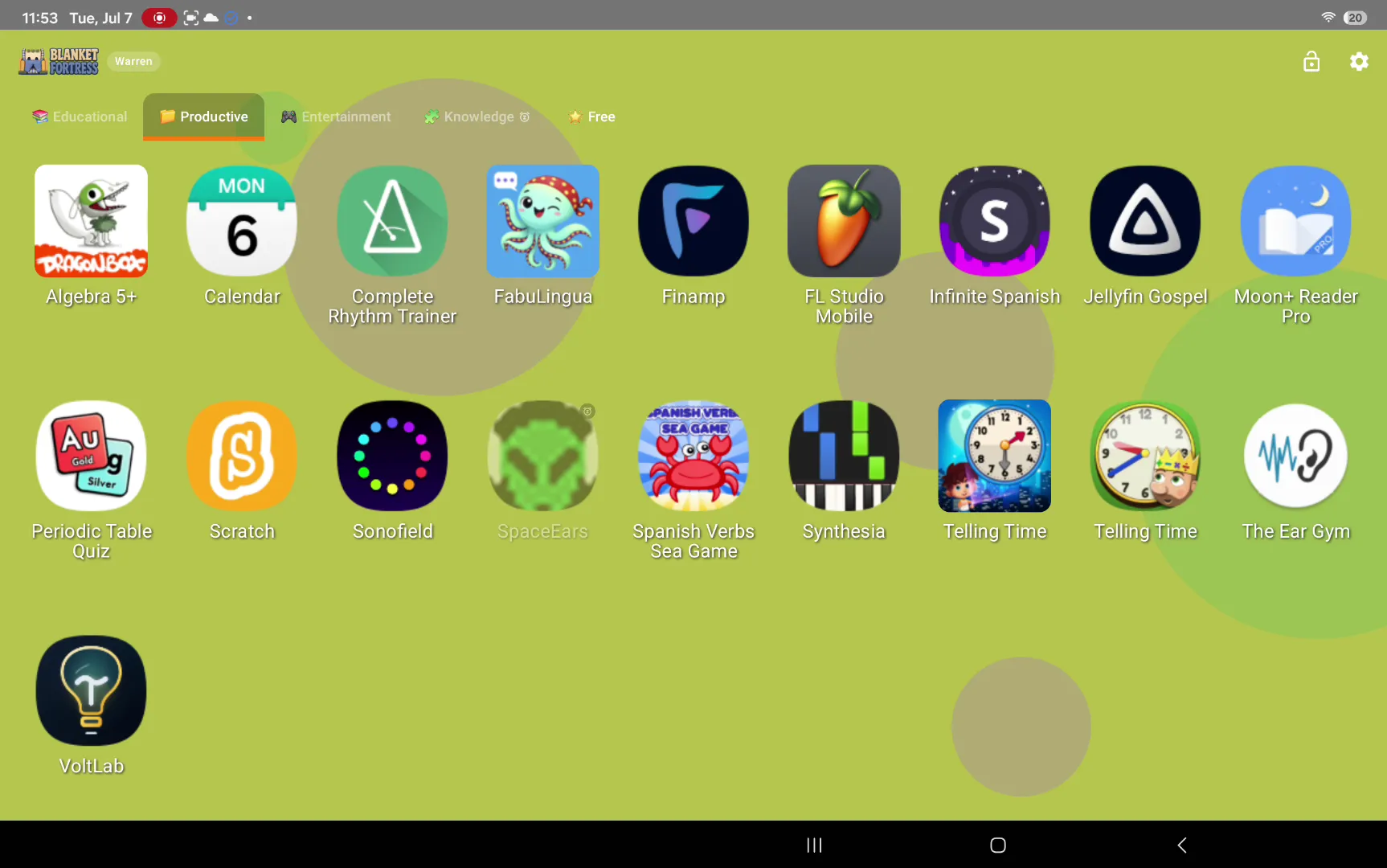
Android control modes
Choose between a locked-down custom home screen and a lighter Background Mode, with category, app, user, and temporary unlock controls.
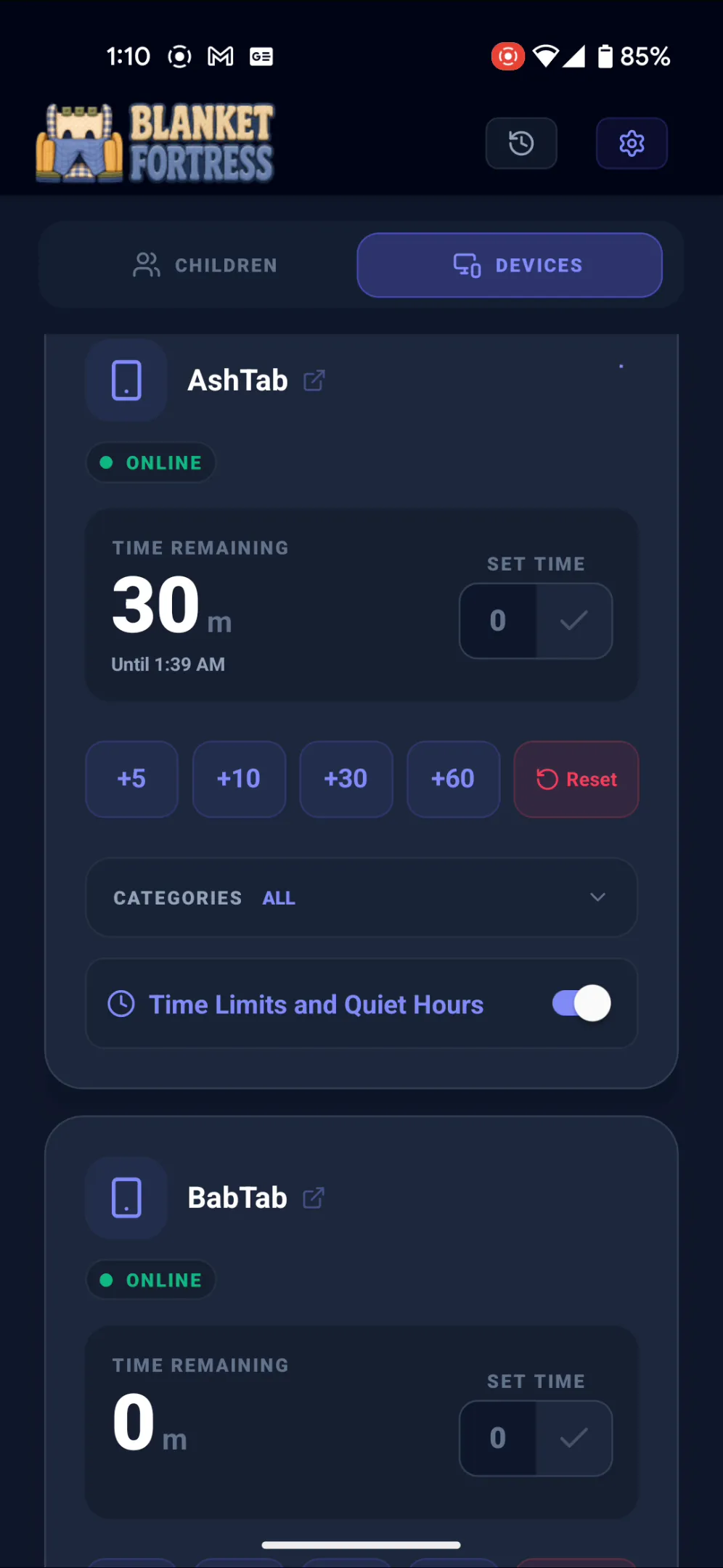
Parent remote tools
Adjust screentime balances, apply spent time, and manage daily allowances from a phone-first remote app and widget.
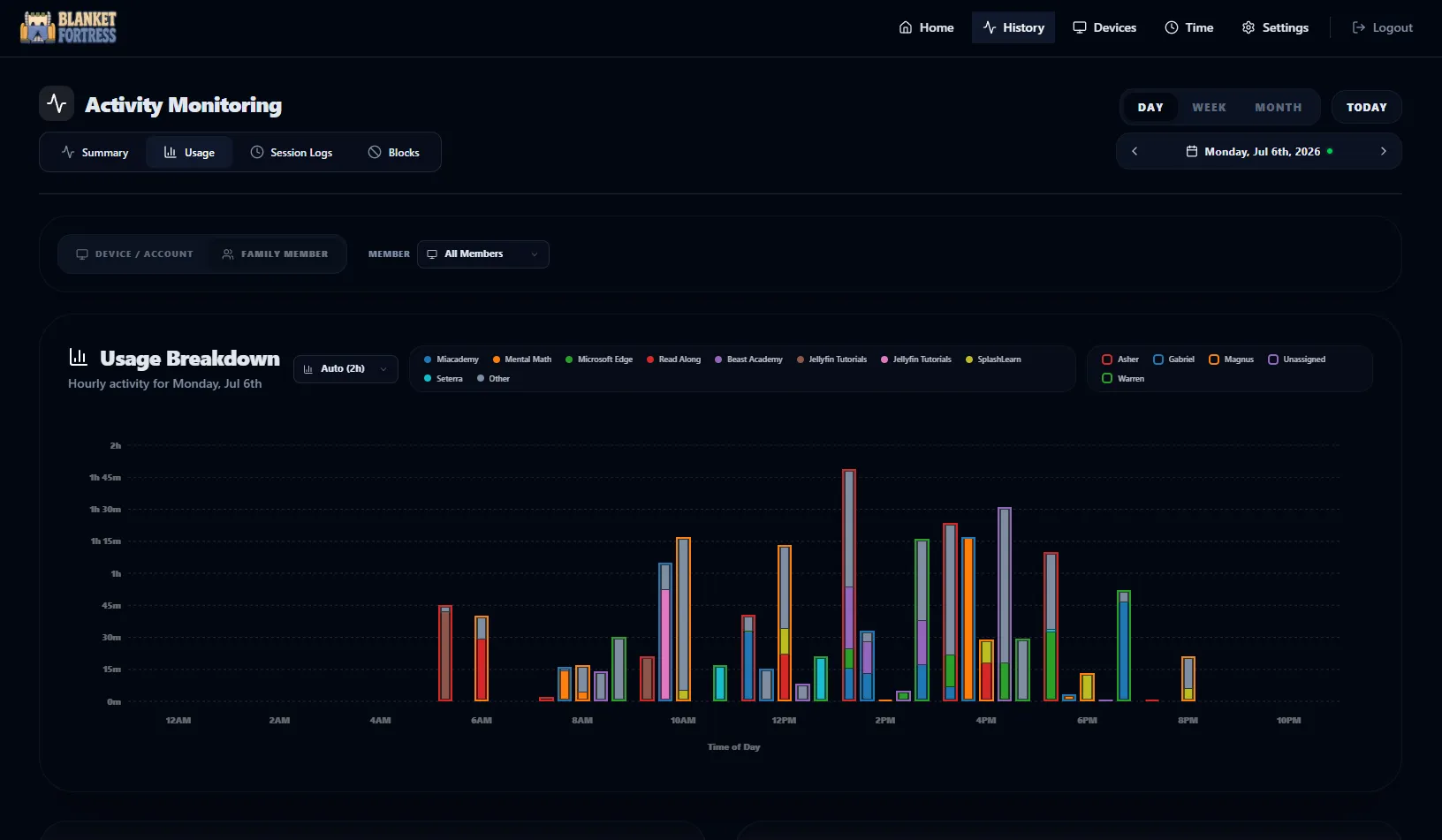
Windows monitoring and review
Schedule app rules, capture screenshots, review detailed session logs, and inspect summaries across individual PCs or a local manager.
Android gives parents a choice between strict launcher control and lighter background enforcement.
The Android side of Blanket Fortress can fully replace the home screen when a family needs tight guardrails, or run in the background when they only want limits on specific apps and categories. The same device can also expose a browser-based local dashboard over the home network.
Key Android capabilities
- App categorization puts apps into groups with shared daily limits, blocked hours, and optional homework-completion requirements before a category can be used.
- Individual apps can override or extend category rules with their own daily usage limits, quiet hours, and work-completion requirements.
- Devices can support multiple users with separate limits per user, although we encourage native Android user switching whenever it is the better fit.
- Home Screen replacement can fully lock the device into curated apps, or Background Mode can leave the normal launcher alone while applying limits only to selected apps and categories.
- A parental PIN with a scrambled keypad protects settings access and allows temporary local bypasses when a parent needs to step in directly.
- Temporary unlocks can open specific categories, or all categories, for a set amount of time and automatically return the child to the home screen afterward.
- Scheduled unlocks let parents choose when categories are available, working alongside daily limits so a child can have access at the right time without giving up the day's cap.
- Usage screens in both the native and local web interfaces show daily, weekly, and monthly usage across the whole device.
Android native app screenshots
These screens focus on the device-side Android experience: the child home screen, local parental PIN entry, category and app rules, temporary unlocks, and usage history.
Android web dashboard screenshots
The Android device also hosts a local network dashboard at its IP address, so parents can review settings and usage from another machine on the same network.
The parent remote app makes time-management adjustments fast enough to use in real life.
When a parent is not near the shared PC or a child’s device, the parent remote app covers the everyday tasks that need to happen quickly: adjusting balances, spending time, or pushing an allowance onto a device.
What parents can do from their phones
- Parents can add, spend, and deduct screentime allowance from their phones, with spent time automatically applying to connected devices.
- Time can also be granted directly to a device remotely when a family needs a quick exception without changing the overall allowance balance.
- The parent widget keeps current balances visible at a glance and supports quick add/spend/deduct actions without opening the full app.
Parent remote screenshots
These screens show the device overview, the screentime allowance workflow, and the widget for quick balance adjustments.
Windows combines scheduled app rules, review tools, and direct remote actions.
The Windows web interface and local network manager are designed for families that want to understand what happened on a machine, enforce app rules over time, and take action remotely without standing at the child’s desk.
What the Windows web interface covers
- App rules and app categories can be scheduled by day of week and time of day, making it practical to block or allow specific apps around school, bedtime, or chores.
- Apps can be blocked until work is completed, matching the same completion-check workflow available on Android categories and apps.
- Rules can trigger screenshots after a minute of app usage, giving parents visual context instead of raw time totals alone.
- Active window titles are recorded and available in Session Logs, with Detailed Session Logs showing every session throughout the day plus screenshots when available.
- Sensitive Keywords can detect inappropriate content, even during Incognito browsing, automatically capturing evidence for parental review.
- History Summary surfaces daily, weekly, and monthly rollups with a timeline, while Usage charts show activity across all connected devices or on a single machine.
- Each machine exposes the same web interface locally, so parents can review usage and change settings over the local network without physically touching the device.
- Time Management supports add/spend/deduct screentime allowances, direct time grants to devices, remote screenshots, and remote shutdown for Windows machines.
Windows web interface screenshots
These screenshots cover app rules, logs, summary views, usage charts, time management, and remote control tools available on Windows and local-manager interfaces.